
Bulk Actions
The bulk action bar is one of Codecks’ most powerful productivity features, allowing you to select multiple cards and perform operations on all of them at once. This is essential for efficiently managing large numbers of cards.
Selecting Multiple Cards
There are several ways to select multiple cards:
Using the Mouse
- Click to select - Click the selection icon (checkbox) that appears in the top-left corner when hovering over a card
- Click and drag - Click and drag across multiple cards to select them all at once
- Ctrl/Cmd + Click - Hold Ctrl (Windows/Linux) or Cmd (Mac) and click individual cards to add them to your selection
Using Keyboard Shortcuts
| Shortcut | Action |
|---|---|
x | Select or deselect the card you’re hovering over |
ctrl/cmd+a | Select all visible cards in the current view |
i | Invert the selection (toggle all) |
Esc | Clear the selection |
Tag-Based Selection
In views with tag filters, you can use the tag selection button (designated with the # icon) to select all cards that share certain tags. When multiple tags are selected, use the “and” and “or” buttons to switch between finding cards that have all the selected tags or any of the selected tags.
The Bulk Action Bar
Once you’ve selected one or more cards, the bulk action bar appears at the top of your screen, replacing the normal header. It shows how many cards are selected and provides quick access to all bulk operations.
Available Bulk Actions
The bulk action bar groups operations into several categories. Not all actions are available in every context - some depend on your permissions, the organization’s enabled features, or whether you’re in a specific view (like milestones or runs).
Moving & Organizing
| Action | Shortcut | Description |
|---|---|---|
| Change Deck | d | Move selected cards to a different deck |
| Add/Remove from Hand | h | Add cards to your hand or remove them if already there. Hold ctrl/cmd while clicking to skip the quick hand view |
| Change Bookmark | - | Add or remove cards from your bookmarks |
| Assign to Run | , | Add selected cards to a specific run (if runs are enabled) |
| Assign to Milestone | m | Assign selected cards to a milestone (if milestones are enabled) |
| Set Due Date | - | Set or change due dates for selected cards (Pro feature) |
| Change Zone | - | Move selected cards to a different zone (only in manual order views with zones) |
Card Properties
| Action | Shortcut | Description |
|---|---|---|
| Set Effort | e | Assign or change effort values for multiple cards at once |
| Set Priority | p | Change priority (A, B, or C) for selected cards |
| Change Owner | o or space | Assign cards to a team member or unassign them. Use space to quickly assign to yourself |
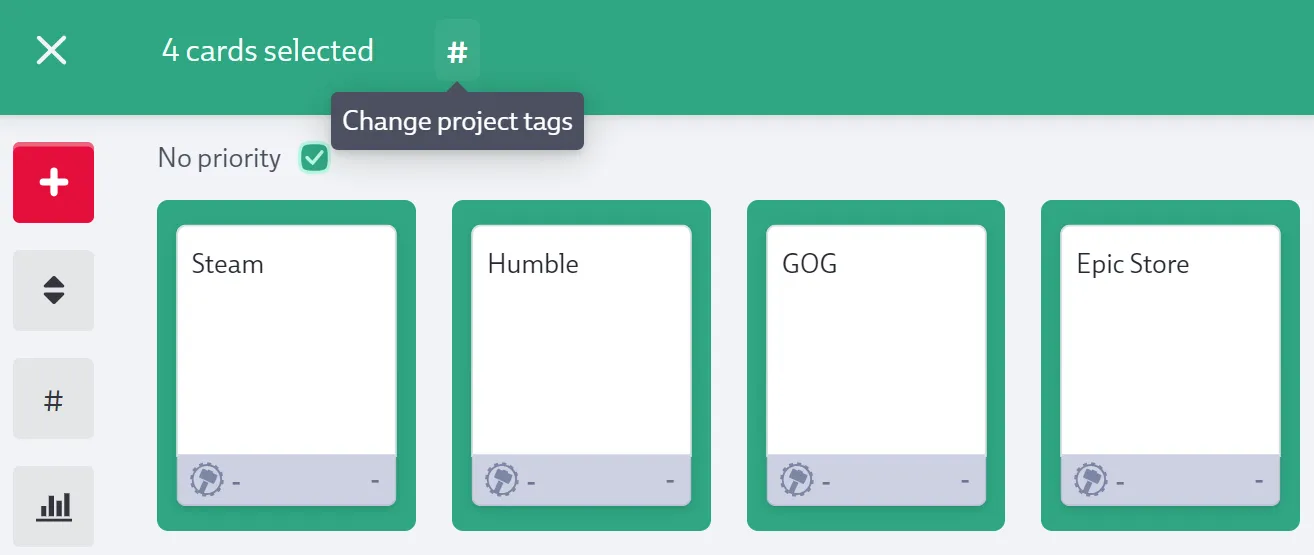
| Modify Tags | t | Add or remove project tags from multiple cards |
| Convert to/from Doc Card | - | Convert task cards to doc cards or vice versa |
Hero Cards & Dependencies
-
Add to Hero Card (
s) - Add selected cards as sub cards to an existing hero card, or create a new hero card containing the selected cards -
Create Dependency Chain (only in journey views) - Automatically create a chain of dependencies between selected cards in the order they appear. Example: Selecting cards B, C, and E creates dependencies B→C→E
Card Management
-
Copy Cards - Duplicate selected cards to the same or a different deck. Choose which properties to copy: effort, priority, owner, tags, attachments, runs, milestones. Hero cards are copied without their sub cards.
-
Export as CSV - Export selected cards to a CSV file with customizable fields.
-
Mark as Done - Quickly mark multiple cards as done (updates workflow state)
-
Archive Cards (
r) - Archive selected cards that are not already archived -
Delete Cards (
backspace) - Permanently delete selected cards
- Snooze Conversations (only visible when in conversation threads) - Move unactionable conversations out of your conversation overview for a set time period
Bulk Actions for Observers
Common Workflows
Bulk triage after planning session
- Filter cards by a specific tag (e.g., “needs-estimation”)
- Select all with
ctrl/cmd+a - Set effort, priority, and owner via bulk actions
- Assign to current run
Clean up completed work
Export for reporting
- Filter cards by run/milestone
- Select all
- Export with custom fields (owner, effort, tracked time, workflow state)
- Analyze in spreadsheet